

As a digital marketing consultant, I spend a lot of time promoting website content on social media. But what about promoting your social presence via your website? Embedding enables you to do exactly that. I’ll often use this tactic for video content as a way to repurpose it and increase its reach.
![Download Now: 25 HTML & CSS Hacks [Free Guide]](https://no-cache.hubspot.com/cta/default/53/848be230-f06a-420e-9a24-82b45fe61632.png)
So what’s the process for embedding external content on your site? It differs slightly between platforms depending on where you’re pulling the content from, but the basic steps are mostly the same.
Let’s take a look at how to add HTML embed codes to your site and the specific steps for different platforms.
Table of Contents
What does embed mean?
The term “embed” means to place externally hosted content onto your website or web page. You do this by placing a block of code – called an embed code – into a HTML block on your website. Once you save the page and view the live version, the media you embedded then renders on the published page.
Embedded content is referenced with HTML, one of the most basic languages used on the web to design and lay out web pages.
You often see this code when you’re in the “back end” of a blog post, for example. That’s where you’ll add your embed code. Most website editors, from WordPress themes to drag-and-drop builders, will have HTML blocks available that you can place on a blog post or website page to paste the HTML code.
What is an embed code?
An embed code is a block of HTML code that is placed in another page and renders a visual element — a video, social media post, form, or page — from another website or source. You can embed YouTube videos, X posts, GIFs, and other multimedia objects on another website.

I frequently use embed codes to embed posts from X or LinkedIn as a quick and easy way to add thought leadership dimensions to blog content, for example.
Most social and multimedia websites have an option to generate an embed code right from each individual post. Here’s an example of an embed code for a HubSpot YouTube video:
<iframe width=“560” height=“315” src=“https://www.youtube.com/embed/eGUEAvNpz48” title=“YouTube video player” frameborder=“0” allow=“accelerometer; autoplay; clipboard-write; encrypted-media; gyroscope; picture-in-picture” allowfullscreen></iframe>
And here’s the embedded result.
Want to do the same thing on your blog posts and pages? Next, I’ll go over how to generate an embed code from the most popular social sites. I’ve found that, once you know how to do this on one platform, the steps are very easy to replicate anywhere embedding is available with small variations.
How to Add HTML Embed Code to Your Site
- Go to the social post, video, or webpage you’d like to embed.
- Generate the embed code using the post’s options.
- If applicable, customize the embed post, such as the height and width of the element.
- Highlight the embed code, then copy it to your clipboard.
- In your content management system, open up your HTML viewer.
- Paste the HTML snippet you just copied into your HTML viewer window. Then click ‘OK’ or ‘Save.’
- Finished! You have now embedded content onto your website or blog.
Let’s dive into each step in more detail.
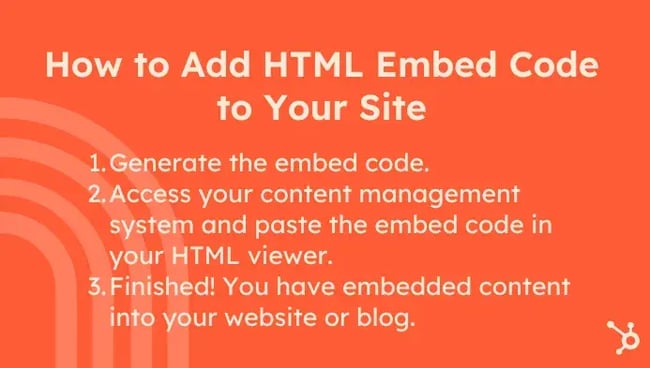
Step 1: Generate the embed code.
Before I embed external content, I first have to generate an embed code for the post or page I want to embed on a website.
Pro tip: A lot of website builders and CMS’s allow you to simply paste the link to the post and automatically embed it without having to go get the embed code. But this varies from one platform to another.
Here’s how I generate the embed code on most of the major social and content networks.
How to Embed a Facebook Post
Here’s how I embed a Facebook post:
- First, I open Facebook on a desktop browser.
- I find the post that I want to embed.
- After clicking the three dots in the top right corner of the post, a drop-down menu appears.
- From the dropdown menu, I click Embed.

- A pop-up appears, and I have the option to include the full post and access advanced settings. The advanced settings are mainly for people with more advanced know-how who want to adjust the width of the post. For beginners, I recommend leaving that alone and simply clicking Copy Code .
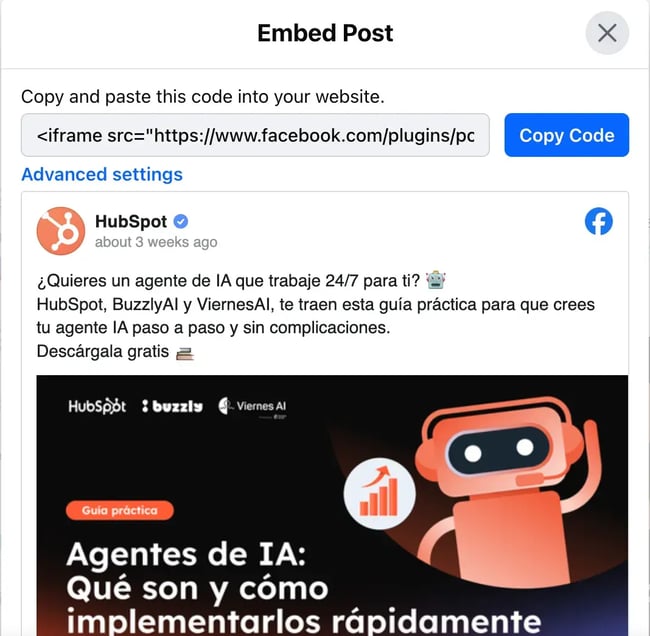
- Now, I’ve got the embed code copied to my clipboard and ready to be pasted in the back end of a website.
How to Embed an Instagram Post
If I want to embed an Instagram post, it’s a pretty similar process. Just remember that embedding Instagram posts is only possible from the desktop version. Here’s how I do it:
- First, I find the post I want to embed and click to open it up fully in the browser.
- Then I click the three dots in the top right corner of the post and out comes a pop-out dropdown menu.
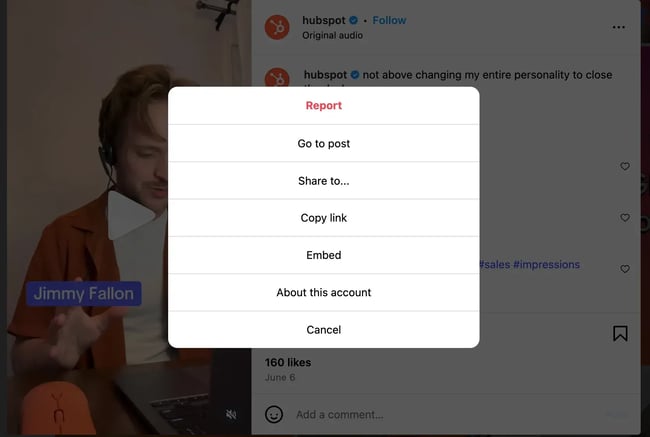
- I select the Embed option from the list.
- The embed code comes up with a button to copy it to my clipboard.
- Sometimes, I want to include the caption. But a lot of times, I’ll uncheck the box Include caption, especially for embedding videos.
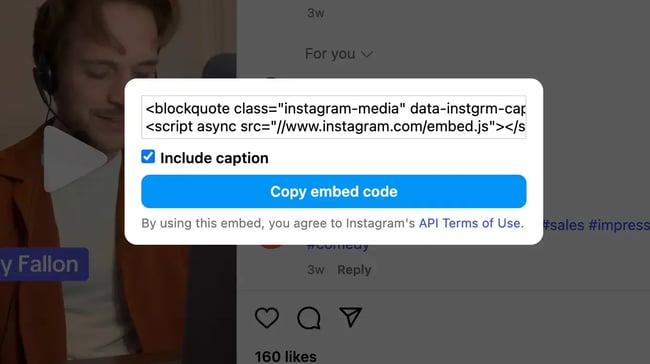
- Once I’ve hit the Copy embed code button, I’m ready to head back to the website to embed the post.
How to Embed a YouTube Video
If I’ve spent a lot of time putting together video content for a YouTube channel, I want to make sure it gets seen as much as possible. So, embedding YouTube videos is one of the most frequent ways I use the embed functionality. It makes my video content accessible to website users to expand its reach.
The other reason it’s good to embed videos? It saves a ton of bandwidth for a website. Videos tend to be very large files. Uploading them directly to a website can drastically slow down page load times. So, if you want videos on your website, I recommend using a platform like YouTube or Vimeo to do so.
Back to how I embed YouTube videos:
- I click into the video I want to embed, and select Share from the row of options underneath the video player.

- Embed is the first option on the list after clicking the Share button.
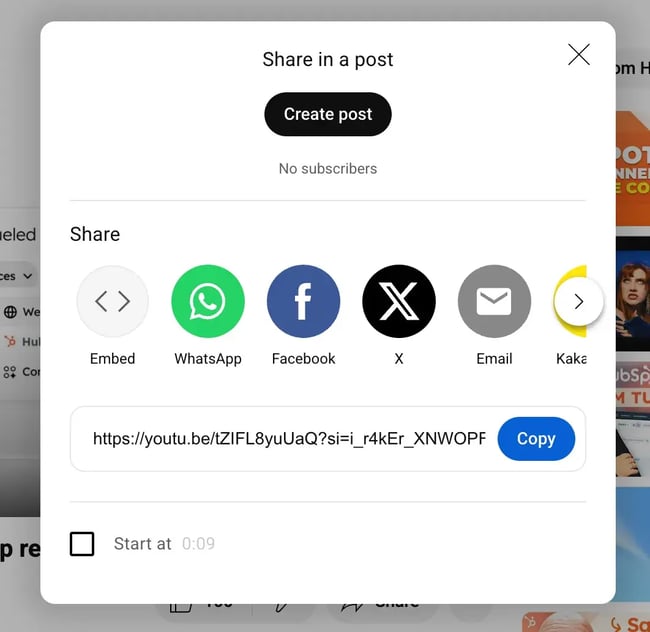
- After clicking Embed, the video pops back up with the embed code to the right-hand side.
- I simply click Copy in the bottom right corner.

- I now have the embed code in my clipboard and ready to paste in the website editor.
How to Embed an X Post
There’s a lot of useful thought leadership on X, and I like to embed tweets throughout editorial or blog content to boost authority and social proof. It’s also a good way to quote experts without needing to contact them directly or get something custom for your post.
Here’s how I can embed X posts:
- First, I open the post I want to embed.
- Up in the browser bar, I copy the link to the post (more on this in a moment).
- Like other platforms, I click the three dots at the top right corner of the post.
- This opens up a list of options, including Embed post.

- Here’s where the process on X gets a little more complex than it probably needs to be. When I click embed, the website opens up https://publish.twitter.com/ in a new tab with the question “What would you like to embed?”
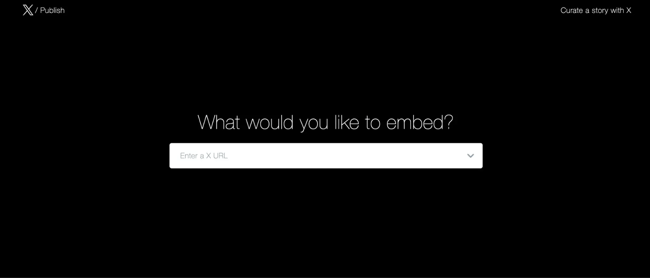
- This is where I paste the link to the X post that I copied earlier from my browser bar.
- I hit enter, and two options appear under “Here are your display options.”
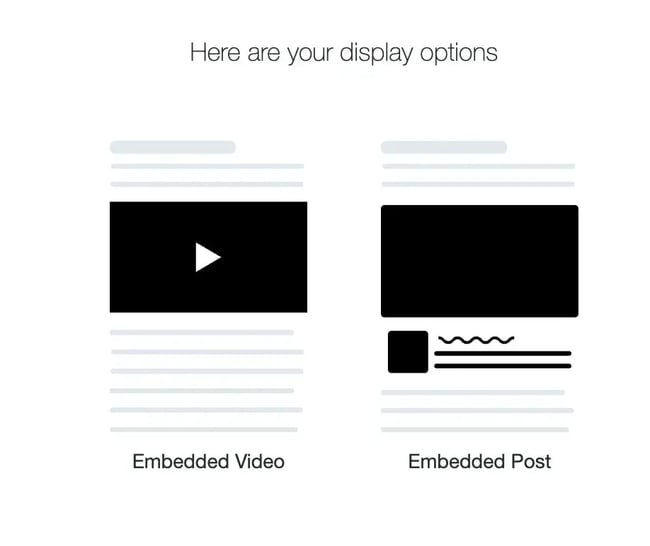
- I click Embedded Post from the two options, but you can click Embedded Video for video content.
- A pop-up appears underneath with the embed code and an option to Copy Code, so I click that option.

- Like Facebook, X also provides the opportunity to “set customization options.”
- Once I’ve clicked Copy Code I can return to my website editor and embed the post.
How to Embed a Pinterest Post
I particularly like Pinterest posts for fashion, DIY, decor, cookery and recipe sites, and hobby sites. If your website is within a niche that lends itself well to Pinterest’s format and audience, embedding your Pinterest posts is a great way to grow your following on the social platform.
Here’s the process I follow for embedding a Pinterest post:
- I open up the Pin I want to embed on the site.
- I click the three dots on the top left, right at the end of the list of options.
- Next I click Get Pin embed code.
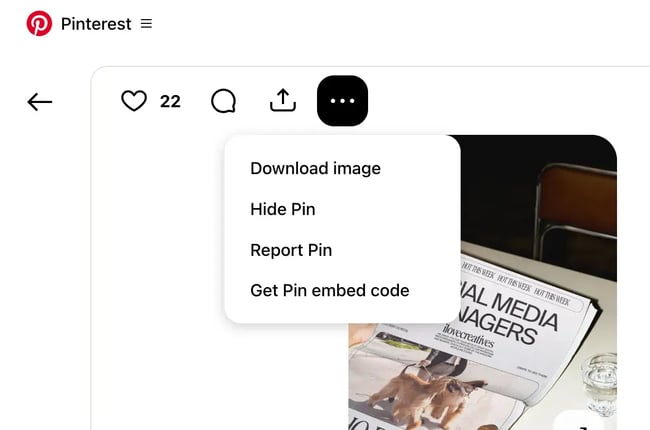
- One of the things I like about Pinterest embed codes are the size options. It means you get the right sizing and resolution. If I’m embedding the pin in a small area like sidebar content, I might choose small. But if I want a full-width image for a blog post, I would choose large.
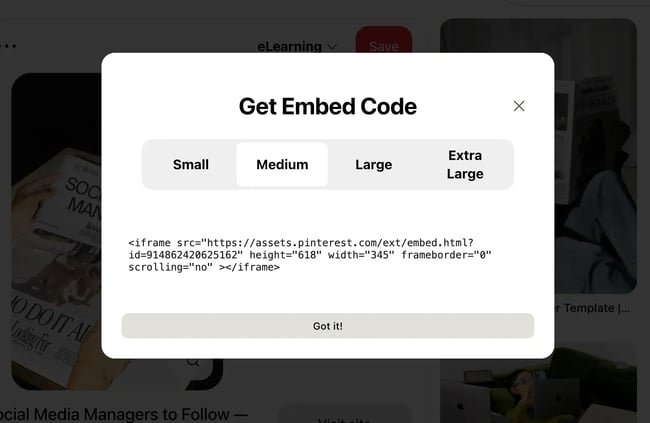
- Once I customize the size, I highlight the code and click Command + C or CTRL + C, depending on the device I’m using.
- Now my Pin is ready to get embedded.
How to Embed a SlideShare Presentation
SlideShare presentations are a little dated these days – it’s a long while since I’ve embedded one on a website. But, you never know. So it’s useful to know how, just in case.
Here’s I grab the embed code for a SlideShare presentation.
- I open the SlideShare presentation I want to embed.
- Under the presentation, I click the three dots and then select the Share option.
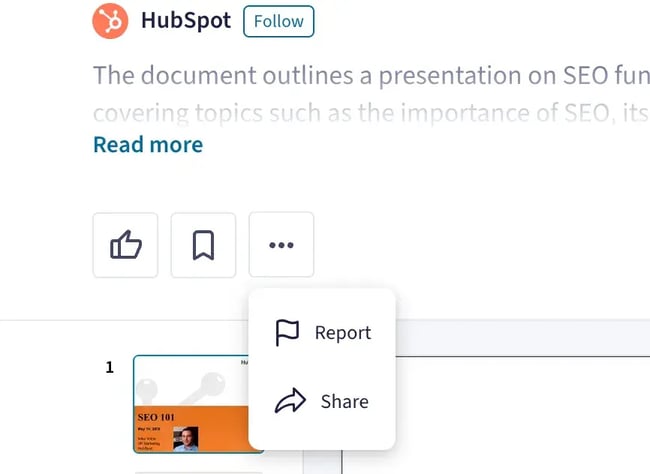
- This prompts a Share this SlideShare box to appear over the presentation slides.
- I go to the Embed section underneath the social share buttons.
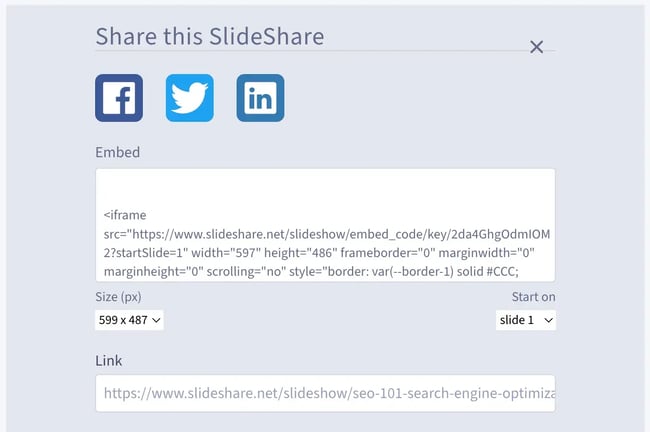
- At first, the field looks blank. But when I click into it, I can see the embed code.
- The good thing about SlideShare is that I can select the size of the presentation on the left, and choose which slide the embed starts on to the right.
- Once I’m happy with those settings, I highlight the embed code and click Command + C or CTRL + C, depending on my device.
- Now, I can go back to my website editor and embed the presentation directly on a website page or blog post.
How to Embed an External Webpage
On a rare occasion, I might need to embed an external webpage. Like all embed codes, this is done using an iframe HTML tag.
Here’s an example of what iframe HTML code looks like:
<iframe src=“url” title=“description” ></iframe>
I can use these same tags to embed an external webpage. Here’s how I do it:
- I take this entire line of code and paste it somewhere like a Notepad app: <iframe src=“url” title=“description” width=”” height=””></iframe>
- Then I go to the webpage I want to embed and I grab the URL from the browser bar.
- Note: I’ll need the entire URL, including the “https” piece.
- In the space in my iframe code where it says “url,” I paste the full webpage URL over that text so it looks like this: <iframe src=“https://example.com/embedded-page” title=“Embedded Page Title” width=”” height=””></iframe>
- I can also adjust the pixel height and width of the frame using the “width=” and “height=” sections, which would look like this: <iframe src=“https://example.com/embedded-page” title=“Website Page Title” width=”750” height=”500”></iframe>
- Finally, I copy the entire line of code to embed it on the website.
Step 2: Access your content management system and paste the embed code in your HTML viewer.
I work with a lot of different CMSs and they all work slightly differently. But the process of using the HTML block is fairly similar across the board. Here, I’ll go over how you can do it in Content Hub and WordPress.
Inserting Embed Code onto a Content Hub Site
In Content Hub, although I could use the HTML editor if I wanted to, I actually don’t need to in order to add embed content. Here’s how it works:
- I open up my HubSpot dashboard and go to Content > Blog. If I was embedding content on a website or landing page, I would go to Content > Website Pages or Content > Landing Pages, respectively.

- Next, I find the blog post or webpage where I want to embed the content, hover over it in the list, and click on the page or post name highlighted in blue.

- In the top editor bar above the post, I click Insert and select Embed from the dropdown menu.
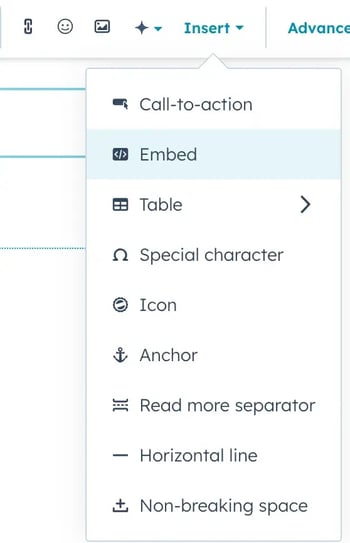
- A pop-up appears where I can either paste the embed code or enter a URL for HubSpot to embed content for me automatically.
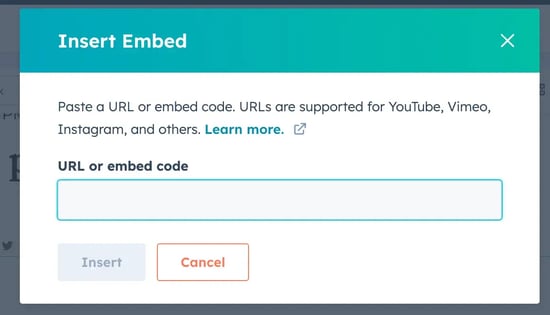
- Then all I need to do is paste in the code and hit Insert.
- If I wanted to add the embed directly in the source code, I would click Advanced from the editor bar.
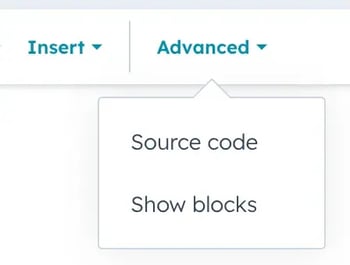
- I can click Source code, and the HTML of the page appears in a pop-up.
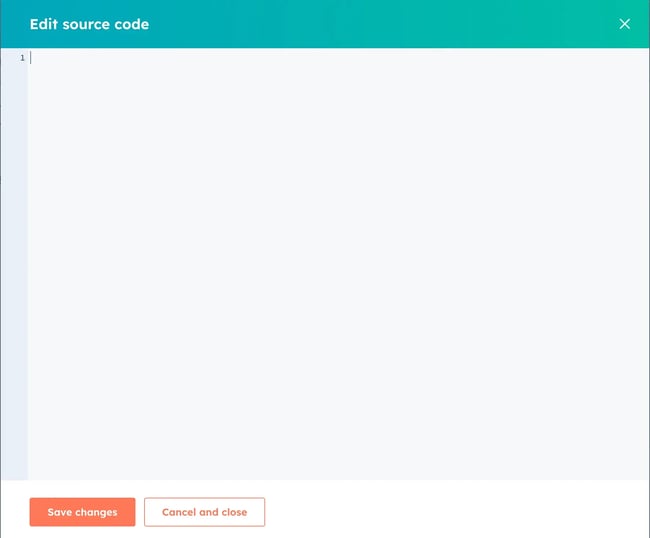
- Then I can paste the embed code where it needs to go on the page and hit Save changes.
Inserting Embed Code in a WordPress Site
There isn’t necessarily a single way to insert embed code on a WordPress site because it can depend on the template you’re using. But if I’m using the standard classic editor, here’s how I do it.
- First, I head to the admin area in the back end and go to either Pages or Posts.
- Then I click the title of the post or hover over it and click the Edit option that appears underneath the title to open up the post editor.
- Next, I click on the Text tab on the upper right-hand corner of the text editor.
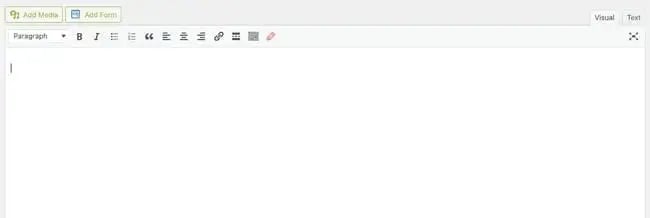
- Finally, I paste the embed code where I want the embedded content to appear in the post.
Step 3: Finished! You have successfully embedded content on your website or blog.
Now all I need to do is save the page, or hit Update if I’m on a WordPress blog, and refresh the live URL to see the embedded content on the front end.
Add embedded content to increase user engagement.
There’s a lot of good content out there even if it hasn’t been created by me or the brand I’m working with, and I find using the embed option is a great way to add depth and interest to my webpages. It helps to increase visual appeal and engagement, especially if you’re embedding videos.
Plus, it’s so easy to do. Once you’ve embedded content a couple of times it quickly becomes second nature. So experiment with embedding from different social media platforms in your page or blogs and watch your user engagement grow.
Editor’s note: This post was originally published in September 2013 and has been updated for comprehensiveness.